 |  |
 |  |  |  |  |  |  |
|  | |||||||


| Tutorial Teach,Learn,Share,Discuss and Do everything other than Class Lectures |
 |
| | Thread Tools | Search this Thread | Rate Thread | Display Modes |
 25-11-2007, 01:50 PM
| #1 | |||
| ||||
| Views: 3468  | ||||
 .BZU.
.BZU. 25-11-2007, 01:50 PM






|
#2
25-11-2007, 02:04 PM
| ||||
| ||||
 Discussion Smart Objects A Smart Object is an embedded file that appears in its own layer in Photoshop. A Smart Object layer is distinguished by an icon that overlays the thumbnail image displayed in the Layers palette, as shown in the example below. Smart Objects are different from other layers because they are linked to a source file (e.g., an Illustrator file, JPEG, GIF or other Photoshop file). If you make changes to the source file, the Smart Object layer will also be updated with those changes. 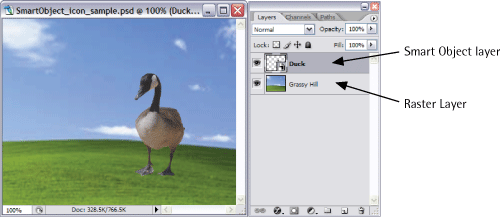 Raster layer vs Smart Object layer In contrast, raster layers (or regular layers) are fully editable, so you can draw and paint on them, fill them with colors, or erase pixels. Unlike Smart Objects, where you retain image quality, if you resize a raster layer smaller, you will lose information. This is demonstrated in the example on the next page, which shows the result of a Smart Object that has been decreased in size, then resized back to its original dimensions. The same steps, when applied to a raster layer, produce an image that is blurred and of lower quality. 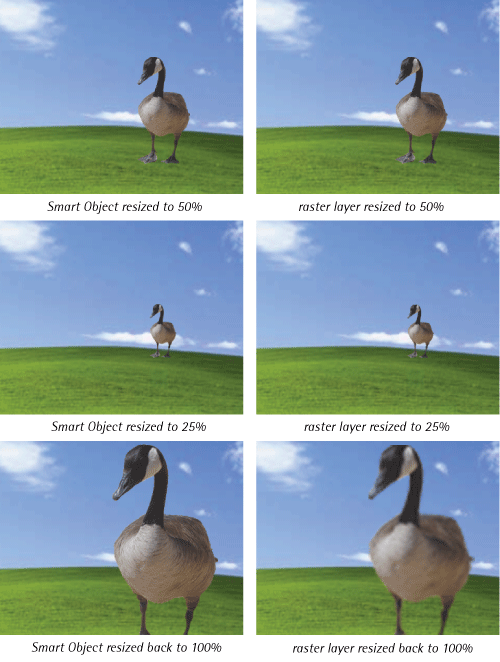 The difference in image quality when resizing a Smart Object compared to a raster layer Because Smart Objects are linked to an outside document, you can resize them without losing the original image data. While you can apply layer effects and some transformations to Smart Object layers, you cannot actually manipulate (paint, draw, erase) their pixels because they are not editable from external documents. You can open the original source file for editing by double-clicking on the Smart Object icon
__________________ (¯`v´¯) `*.¸.*` ¸.*´¸.*´¨) ¸.*´¨) (¸.*´ (¸.Bzu Forum   Don't cry because it's over, smile because it happened Don't cry because it's over, smile because it happened  |


|
#3
25-11-2007, 02:09 PM
| ||||
| ||||
 Rasterizing You can rasterize Smart Objects by right-clicking on the name of the Smart Object layer and choosing Rasterize Layer. This will break the link to the original source file and treat the layer as an ordinary raster layer. Resizing a Document Solution Bring up the Image Size dialog box by selecting Image > Image Size or pressing Ctrl-Alt-I (Command-Option-I on a mac). You can resize the document by altering either the Pixel Dimensions or the Document Size. Use the former when resizing images that will be used on screen (such as images that will be used on a web page), and the latter when resizing images that will be printed. 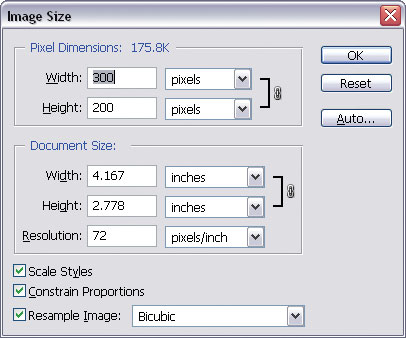 Image Size dialog box You can maintain the original document proportions as you resize the image by checking the Constrain Proportions checkbox. To scale layer styles (drop shadows, strokes, etc.), check the Scale Styles checkbox.
__________________ (¯`v´¯) `*.¸.*` ¸.*´¸.*´¨) ¸.*´¨) (¸.*´ (¸.Bzu Forum Don't cry because it's over, smile because it happened |
|
#4
25-11-2007, 02:12 PM
| ||||
| ||||
 Resizing a Layer or Selection Photoshop also lets you resize layers or particular portions of a document without affecting the overall size of the document. 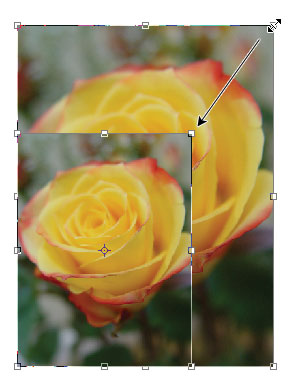 Resizing an element using corner handles
__________________ (¯`v´¯) `*.¸.*` ¸.*´¸.*´¨) ¸.*´¨) (¸.*´ (¸.Bzu Forum Don't cry because it's over, smile because it happened |
|
#5
25-11-2007, 02:19 PM
| ||||
| ||||
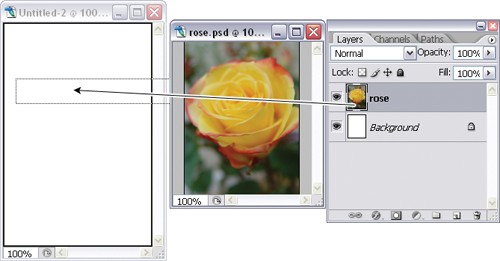
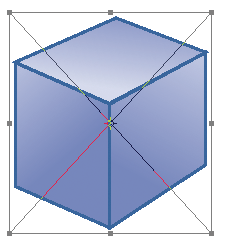
| Solution From the Layers palette, select the layer that contains the element you wish to resize. If the layer contains other elements that you don't wish to resize, select your element using one of the selection tools. After making your selection, use Edit > Free Transform or press Ctrl-T (Command-T on a Mac). A bounding box with handles will appear around your selection. Click and drag these handles to resize the element, as shown in this example. To keep the transformation in proportion so that the image does not appear squashed or stretched, hold down the Shift key and resize it using the corner handles. You can also resize the element to a specific width or height using the options bar. In the example below, I clicked the Maintain Aspect Ratio button (signified by chain links), then specified the width -- this changed the height of my element automatically. If I had not maintained the aspect ratio, only the width of my rose would have changed. Press Enter or double-click inside the bounding box to apply the transformation 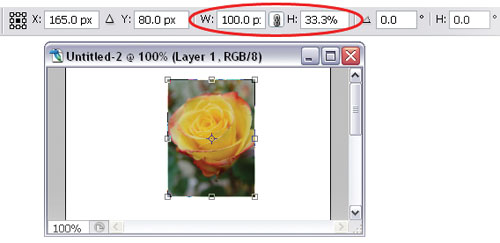 Using the Free Transform options
__________________ (¯`v´¯) `*.¸.*` ¸.*´¸.*´¨) ¸.*´¨) (¸.*´ (¸.Bzu Forum Don't cry because it's over, smile because it happened |
|
#6
25-11-2007, 02:20 PM
| ||||
| ||||
 Discussion When you resize different layer types, you get different results. Vector shape layers, such as text or shape layers, can be resized larger or smaller without loss of quality. Smart Objects can also be resized larger or smaller without loss of quality, depending on the original file. If the original file is a vector graphic, the Smart Object can be resized without ever losing quality. If the original file is a GIF or similar, the Smart Object can be resized up to the size of the image dimensions, above which it will start to lose quality. Raster layers or selections can only be resized smaller. Resizing them larger will usually result in loss of quality.
__________________ (¯`v´¯) `*.¸.*` ¸.*´¸.*´¨) ¸.*´¨) (¸.*´ (¸.Bzu Forum Don't cry because it's over, smile because it happened |
|
#7
25-11-2007, 02:21 PM
| ||||
| ||||
| Rotating a Layer or Selection Earlier, you may have used the Free Transform command to resize layers and selections, and thought it was pretty swell. What you probably weren't aware of at the time is that the very same command can also be used to rotate layers and selections!
__________________ (¯`v´¯) `*.¸.*` ¸.*´¸.*´¨) ¸.*´¨) (¸.*´ (¸.Bzu Forum Don't cry because it's over, smile because it happened |
|
#8
25-11-2007, 02:21 PM
| ||||
| ||||
| Solution Make a selection or choose the layer you'd like to rotate. Select Edit > Free Transform or press Ctrl-T (Command T), and move your cursor outside the bounding box. You'll see that it turns into a curved, two-headed arrow as shown in this example. You can click and drag this cursor to rotate the elements within the bounding box.
__________________ (¯`v´¯) `*.¸.*` ¸.*´¸.*´¨) ¸.*´¨) (¸.*´ (¸.Bzu Forum Don't cry because it's over, smile because it happened |
|
#9
25-11-2007, 02:23 PM
| ||||
| ||||
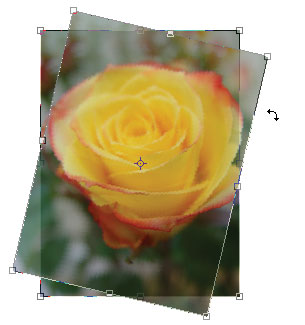 Rotating a selection
__________________ (¯`v´¯) `*.¸.*` ¸.*´¸.*´¨) ¸.*´¨) (¸.*´ (¸.Bzu Forum Don't cry because it's over, smile because it happened |
|
#10
25-11-2007, 02:25 PM
| ||||
| ||||

Hold down the Shift key to constrain the angle movement to 15-degree increments. You can also set a specific angle of rotation (between -180? and 180?) in the Angle text box in the options bar. 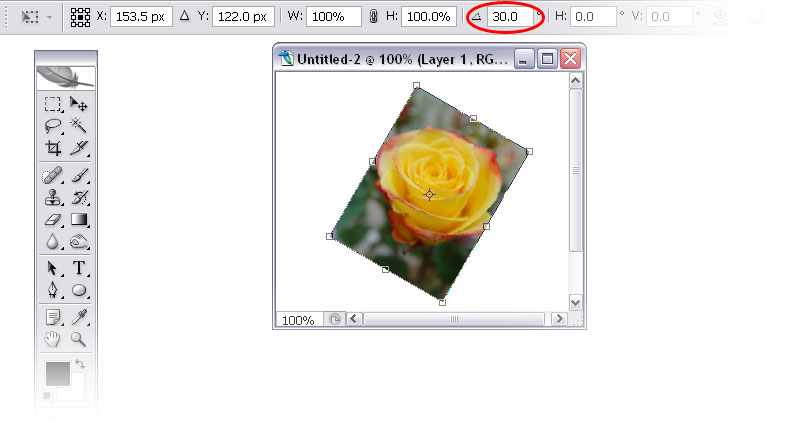 Setting the angle of rotation in the options bar Rotation Alternatives For 90- or 180-degree rotations, you can select Edit > Transform and choose from Rotate 180?, Rotate 90? CW, or Rotate 90? CCW. Press Enter or double-click inside the bounding box to complete the transformation.
__________________ (¯`v´¯) `*.¸.*` ¸.*´¸.*´¨) ¸.*´¨) (¸.*´ (¸.Bzu Forum Don't cry because it's over, smile because it happened |
|
| Tags |
| adobephoto, class, fellows, free, photo shop, shop, tutorial |

« Previous Thread
|
Next Thread »
| Currently Active Users Viewing This Thread: 1 (0 members and 1 guests) | |
 Linear Mode

| |

 Similar Threads
 | ||||
| Thread | Thread Starter | Forum | Replies | Last Post |
| Proposal of a 3th class boy to 9th class girl. | usman_latif_ch | Funny Cut Piece | 0 | 02-11-2011 07:13 PM |
| New sub-domain, for free web development tutorial added | .BZU. | Suggestion,Feedback and News about site | 0 | 01-07-2010 01:36 PM |
| Dedicated to my lovely friends and class fellows | ghazala | Urdu Poetry | 1 | 18-06-2009 08:54 AM |
| Juniors [ Our New fellows.. | shmsa | Chit Chat | 16 | 05-10-2008 10:22 PM |
Almuslimeen.info | BZU Multan | Dedicated server hosting
Note: All trademarks and copyrights held by respective owners. We will take action against any copyright violation if it is proved to us.
All times are GMT +5. The time now is 02:33 PM.
Powered by vBulletin® Version 3.8.2
Copyright ©2000 - 2026, Jelsoft Enterprises Ltd.
Copyright ©2000 - 2026, Jelsoft Enterprises Ltd.