 |  |
 |  |  |  |  |  |  |
|  | |||||||


| Tutorial Teach,Learn,Share,Discuss and Do everything other than Class Lectures |
| | Thread Tools | Search this Thread | Rate Thread | Display Modes |


|
#5
 25-11-2007, 02:19 PM
| ||||
| ||||
| Solution From the Layers palette, select the layer that contains the element you wish to resize. If the layer contains other elements that you don't wish to resize, select your element using one of the selection tools. After making your selection, use Edit > Free Transform or press Ctrl-T (Command-T on a Mac). A bounding box with handles will appear around your selection. Click and drag these handles to resize the element, as shown in this example. To keep the transformation in proportion so that the image does not appear squashed or stretched, hold down the Shift key and resize it using the corner handles. You can also resize the element to a specific width or height using the options bar. In the example below, I clicked the Maintain Aspect Ratio button (signified by chain links), then specified the width -- this changed the height of my element automatically. If I had not maintained the aspect ratio, only the width of my rose would have changed. Press Enter or double-click inside the bounding box to apply the transformation 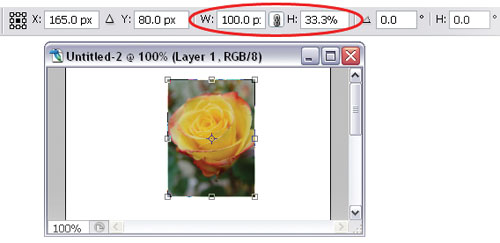 Using the Free Transform options
__________________ (¯`v´¯) `*.¸.*` ¸.*´¸.*´¨) ¸.*´¨) (¸.*´ (¸.Bzu Forum   Don't cry because it's over, smile because it happened Don't cry because it's over, smile because it happened   |

 .BZU.
.BZU.





| Tags |
| adobephoto, class, fellows, free, photo shop, shop, tutorial |

« Previous Thread
|
Next Thread »
| Currently Active Users Viewing This Thread: 1 (0 members and 1 guests) | |


 Threaded Mode
| |

 Similar Threads
 | ||||
| Thread | Thread Starter | Forum | Replies | Last Post |
| Proposal of a 3th class boy to 9th class girl. | usman_latif_ch | Funny Cut Piece | 0 | 02-11-2011 07:13 PM |
| New sub-domain, for free web development tutorial added | .BZU. | Suggestion,Feedback and News about site | 0 | 01-07-2010 01:36 PM |
| Dedicated to my lovely friends and class fellows | ghazala | Urdu Poetry | 1 | 18-06-2009 08:54 AM |
| Juniors [ Our New fellows.. | shmsa | Chit Chat | 16 | 05-10-2008 10:22 PM |
Almuslimeen.info | BZU Multan | Dedicated server hosting
Note: All trademarks and copyrights held by respective owners. We will take action against any copyright violation if it is proved to us.
All times are GMT +5. The time now is 06:59 PM.
Powered by vBulletin® Version 3.8.2
Copyright ©2000 - 2026, Jelsoft Enterprises Ltd.
Copyright ©2000 - 2026, Jelsoft Enterprises Ltd.